





This thermostat integration aims to drastically simplify your automations around climate management. Because all classical events in climate are natively handled by the thermostat (nobody at home ?, activity detected in a room ?, window open ?, power shedding ?), you don't have to build over complicated scripts and automations to manage your climates ;-).
- Thanks for the beer buymecoffee
- When to use / not use
- Why another thermostat implementation ?
- How to install this incredible Versatile Thermostat ?
- Configuration
- Minimal configuration update
- Select the driven entity
- Configure the TPI algorithm coefficients
- Configure the preset temperature
- Configure the doors/windows turning on/off the thermostats
- Configure the activity mode or motion detection
- Configure the power management
- Configure the presence or occupancy
- Advanced configuration
- Parameters synthesis
- Examples tuning
- Algorithm
- Sensors
- Services
- Notifications
- Custom attributes
- Some results
- Even better
- Contributions are welcome!
This custom component for Home Assistant is an upgrade and is a complete rewrite of the component "Awesome thermostat" (see Github) with addition of features.
News
- Release 3.6: Added the
motion_off_delayparameter to improve motion management #116, [#128](https ://github.com/jmcollin78/versatile_thermostat/issues/128). Added AC (air conditioning) mode for a VTherm over switch. Preparing the Github project to facilitate contributions #127- Release 3.5: Multiple thermostats when using "thermostat over another thermostat" mode #113
- Release 3.4: bug fixes and expose preset temperatures for AC mode #103
- Release 3.3: add the Air Conditionned mode (AC). This feature allow to use the eventual AC mode of your underlying climate entity. You have to check the "Use AC mode" checkbox in configuration and give preset temperature value for AC mode and AC mode when absent if absence is configured
- Release 3.2: add the ability to control multiple switches from the same thermostat. In this mode, the switches are triggered with a delay to minimize the power required at one time (we minimize the recovery periods). See Configuration
- Release 3.1: added detection of open windows/doors by temperature drop. This new function makes it possible to automatically stop a radiator when the temperature drops suddenly. See Auto mode
- Major release 3.0: addition of thermostat equipment and associated sensors (binary and non-binary). Much closer to the Home Assistant philosophy, you now have direct access to the energy consumed by the radiator controlled by the thermostat and many other sensors that will be useful in your automations and dashboard.
- release 2.3: addition of the power and energy measurement of the radiator controlled by the thermostat.
- release 2.2: addition of a safety function allowing a radiator not to be left heating forever in the event of a thermometer failure
- major release 2.0: addition of the "over climate" thermostat allowing you to transform any thermostat into a Versatile Thermostat and add all the functions of the latter.
Thanks for the beer buymecoffee
Many thanks to @salabur, @pvince83, @bergoglio, @EPicLURcher, @ecolorado66, @Kriss1670, @maia, @f.maymil for the beers. It's very pleasing.
When to use / not use
This thermostat can control 2 types of equipment:
- a heater that only works in on/off mode (named
thermostat_over_switch). Versatile Thermostat will regulate the length of a heating cycle and the pauses in-between by controlling a binary on/off switch. This mode is e.g. suitable for an electrical radiator controlled by a switch. The minimum configuration required to use this type of thermostat is:- an equipment such as a radiator (a
switchor equivalent), - a temperature probe for the room (or an input_number),
- an external temperature sensor (think about weather integration if you don't have one)
- an equipment such as a radiator (a
- another thermostat that has its own operating modes (named
thermostat_over_climate). Versatile Thermostat will regulate the target temperature of a climate entity. Common examples for this mode are the control of thermostatic radiator valves (TRV), air-conditions (AC), floor heating systems and pellet heating. For this type of thermostat, the minimum configuration requires:- an equipment such as air conditioning or thermostatic valve (TRV) which is controlled by its own
climatetype entity,
- an equipment such as air conditioning or thermostatic valve (TRV) which is controlled by its own
The thermostat_over_climate type allows you to add all the functionality provided by VersatileThermostat to your existing equipment. The climate VersatileThermostat entity will control your existing climate entity, turning it off if the windows are open, switching it to Eco mode if no one is present, etc. See here. For this type of thermostat, any heating cycles are controlled by the underlying climate entity and not by the Versatile Thermostat itself.
Why another thermostat implementation ?
This component named Versatile thermostat manage the following use cases :
- Configuration through standard integration GUI (using Config Entry flow),
- Full uses of presets mode,
- Unset the preset mode when the temperature is manually defined on a thermostat,
- Turn off/on a thermostat when a door or windows is opened/closed after a certain delay,
- Change preset when an activity is detected or not in a room for a defined time,
- Use a TPI (Time Proportional Interval) algorithm thank's to [Argonaute] algorithm ,
- Add power shedding management or regulation to avoid exceeding a defined total power. When max power is exceeded, a hidden 'power' preset is set on the climate entity. When power goes below the max, the previous preset is restored.
- Add home presence management. This feature allows you to dynamically change the temperature of preset considering a occupancy sensor of your home.
- Add services to interact with the thermostat from others integration: you can force the presence / un-presence using a service, and you can dynamically change the temperature of the presets and change dynamically the security parameters.
- Add sensors to see the internal states of the thermostat
How to install this incredible Versatile Thermostat ?
HACS installation (recommended)
- Install HACS. That way you get updates automatically.
- Add this Github repository as custom repository in HACS settings.
- search and install "Versatile Thermostat" in HACS and click
install. - Restart Home Assistant,
- Then you can add an Versatile Thermostat integration in the integration page. You add as many Versatile Thermostat that you need (typically one per heater that should be managed)
Manual installation
- Using the tool of choice open the directory (folder) for your HA configuration (where you find
configuration.yaml). - If you do not have a
custom_componentsdirectory (folder) there, you need to create it. - In the
custom_componentsdirectory (folder) create a new folder calledversatile_thermostat. - Download all the files from the
custom_components/versatile_thermostat/directory (folder) in this repository. - Place the files you downloaded in the new directory (folder) you created.
- Restart Home Assistant
- Configure new Versatile Thermostat integration
Configuration
Note: no configuration in configuration.yaml is needed because all configuration is done through the standard GUI when adding the integration.
Click on Add integration button in the integration page
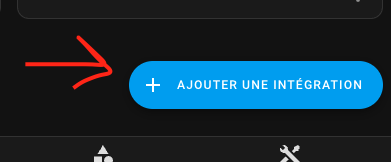
The configuration can be change through the same interface. Simply select the thermostat to change, hit "Configure" and you will be able to change some parameters or configuration.
Then follow the configurations steps as follow:
Minimal configuration update
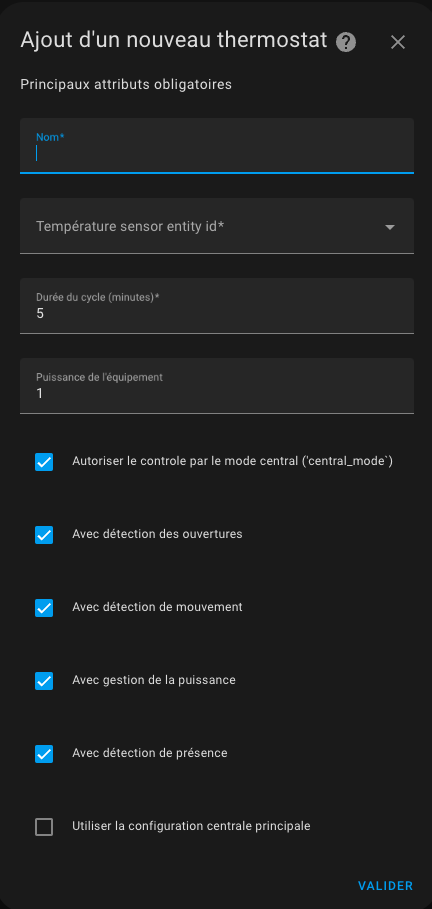
Give the main mandatory attributes:
- a name (will be the name of the integration and also the name of the climate entity)
- the type of thermostat
thermostat_over_switchto control a radiator controlled by a switch orthermostat_over_climateto control another thermostat. Cf. above - a temperature sensor entity identifier which gives the temperature of the room in which the radiator is installed,
- a temperature sensor entity giving the outside temperature. If you don't have an external sensor, you can use local weather integration
- a cycle duration in minutes. On each cycle, the heater will cycle on and then off for a calculated time to reach the target temperature (see preset below),
- minimum and maximum thermostat temperatures,
- the power of the l'équipement which will activate the power and energy sensors of the device,
- the list of features that will be used for this thermostat. Depending on your choices, the following configuration screens will appear or not.
thermostat_over_switchtype, calculation are done at each cycle. So in case of conditions change, you will have to wait for the next cycle to see a change. For this reason, the cycle should not be too long. 5 min is a good value, 2. if the cycle is too short, the heater could never reach the target temperature indeed for heater with accumulation features and it will be unnecessary solicited
Select the driven entity
Depending on your choice on the type of thermostat, you will have to choose a switch type entity or a climate type entity. Only compatible entities are shown.
For a thermostat_over_switch thermostat:
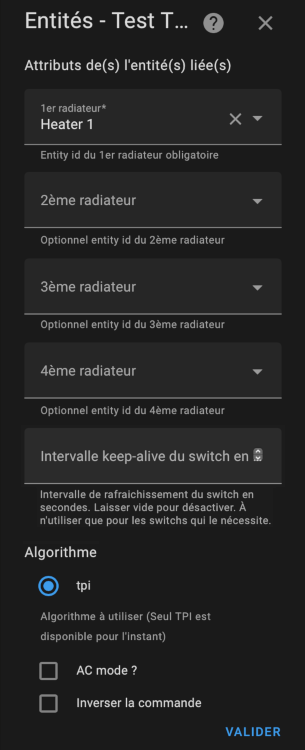 The algorithm to be used today is limited to TPI is available. See algorithm
If several type entities are configured, the thermostat staggers the activations in order to minimize the number of active switches at a time t. This allows a better distribution of power since each radiator will turn on in turn.
Example of synchronized triggering:
The algorithm to be used today is limited to TPI is available. See algorithm
If several type entities are configured, the thermostat staggers the activations in order to minimize the number of active switches at a time t. This allows a better distribution of power since each radiator will turn on in turn.
Example of synchronized triggering:

It is possible to choose an over switch thermostat which controls air conditioning by checking the "AC Mode" box. In this case, only the cooling mode will be visible.
For a thermostat_over_climate thermostat:
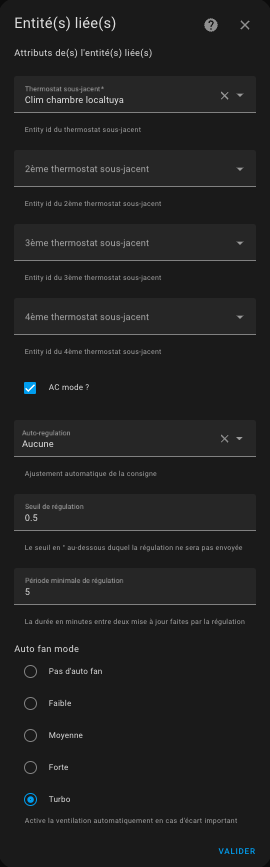
It is possible to choose an over climate thermostat which controls reversible air conditioning by checking the “AC Mode” box. In this case, depending on the equipment ordered, you will have access to heating and/or cooling.
Configure the TPI algorithm coefficients
Click on 'Validate' on the previous page and you will get there:
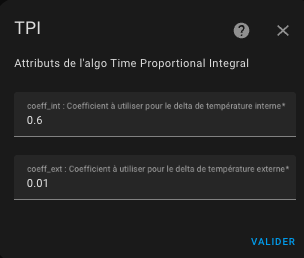
For more informations on the TPI algorithm and tuned please refer to algorithm.
Configure the preset temperature
Click on 'Validate' on the previous page and you will get there:
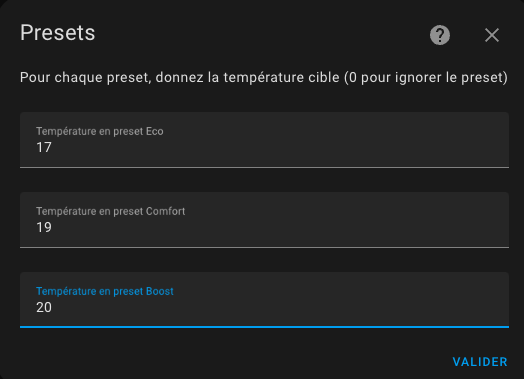
The preset mode allows you to pre-configurate targeted temperature. Used in conjonction with Scheduler (see scheduler you will have a powerfull and simple way to optimize the temperature vs electrical consumption of your hous. Preset handled are the following :
- Eco : device is running an energy-saving mode
- Comfort : device is in comfort mode
- Boost : device turn all valve full up
If AC mode is used, you will also be able to configure temperatures when the equipment is in cooling mode.
None is always added in the list of modes, as it is a way to not use the presets modes but a manual temperature instead.
Awaypreset is a hidden preset which is not directly selectable. Versatile Thermostat uses the presence management or movement management to set automatically and dynamically the target temperature depending on a presence in the home or an activity in the room. See presence management. 3. if you uses the power shedding management, you will see a hidden preset namedpower. The heater preset is set topowerwhen overpowering conditions are encountered and shedding is active for this heater. See power management. 4. if you uses the advanced configuration you will see the preset set tosecurityif the temperature could not be retrieved after a certain delay 5. ff you don't want to use the preseet, give 0 as temperature. The preset will then been ignored and will not displayed in the front component
Configure the doors/windows turning on/off the thermostats
You must have chosen the With opening detection feature on the first page to arrive on this page.
The detection of openings can be done in 2 ways:
- either with a sensor placed on the opening (sensor mode),
- either by detecting a sudden drop in temperature (auto mode)
The sensor mode
In sensor mode, you must fill in the following information:
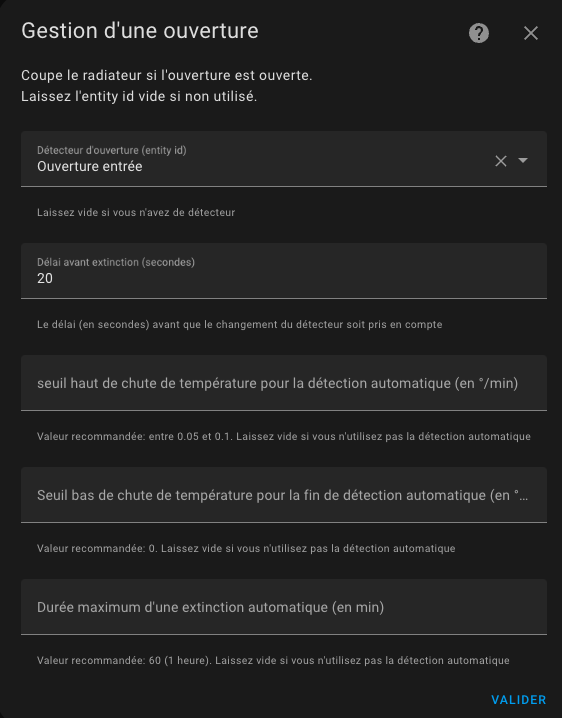
- an entity ID of a window/door sensor. It should be a binary_sensor or an input_boolean. The state of the entity must be 'on' when the window is open or 'off' when it is closed
- a delay in seconds before any change. This allows a window to be opened quickly without stopping the heating.
Auto mode
In auto mode, the configuration is as follows:
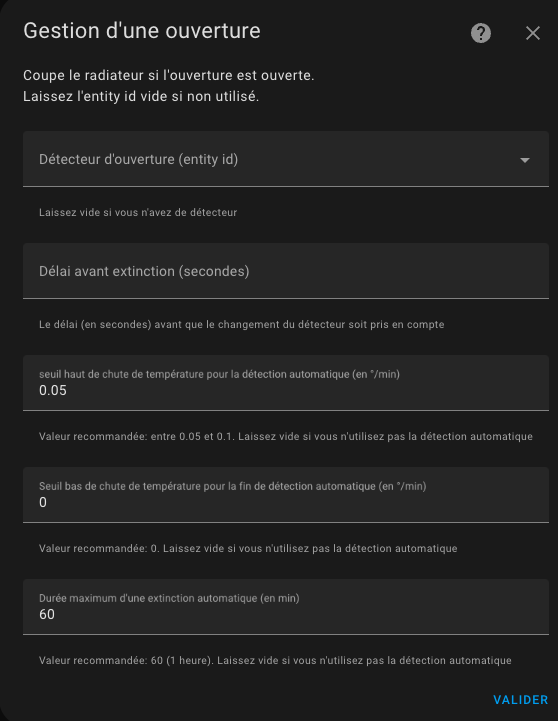
- a detection threshold in degrees per minute. When the temperature drops below this threshold, the thermostat will turn off. The lower this value, the faster the detection will be (in return for a risk of false positives),
- an end of detection threshold in degrees per minute. When the temperature drop goes above this value, the thermostat will go back to the previous mode (mode and preset),
- maximum detection time. Beyond this time, the thermostat will return to its previous mode and preset even if the temperature continues to drop.
To set the thresholds it is advisable to start with the reference values and adjust the detection thresholds. A few tries gave me the following values (for a desktop):
- detection threshold: 0.05°C/min
- non-detection threshold: 0 °C/min
- maximum duration: 60 min.
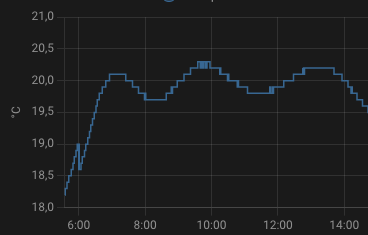
A new "slope" sensor has been added for all thermostats. It gives the slope of the temperature curve in °C/min (or °K/min). This slope is smoothed and filtered to avoid aberrant values from the thermometers which would interfere with the measurement.
To properly adjust it is advisable to display on the same historical graph the temperature curve and the slope of the curve (the "slope"):
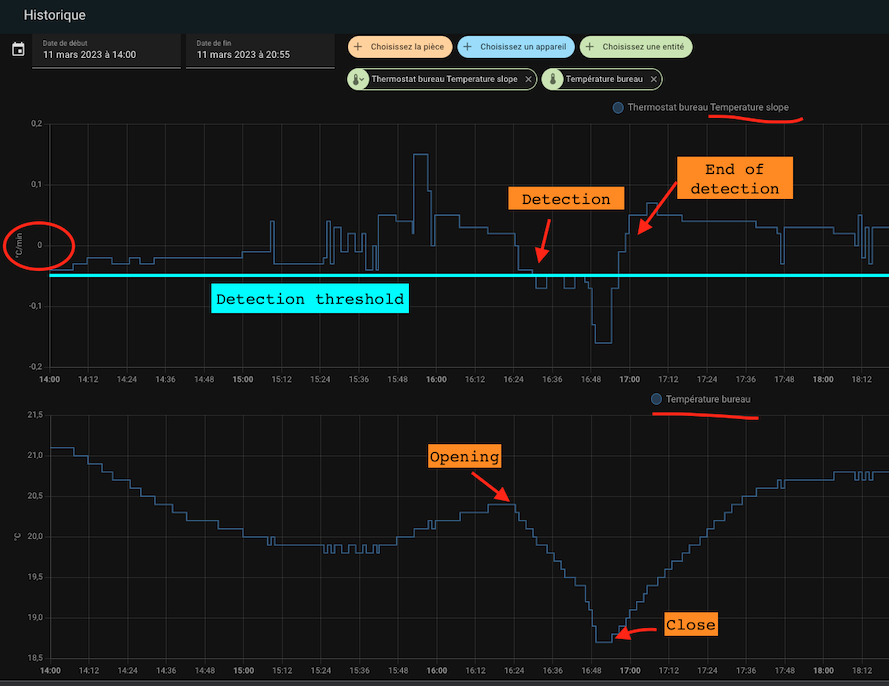
And that's all ! your thermostat will turn off when the windows are open and turn back on when closed.
Configure the activity mode or motion detection
If you choose the Motion management feature, lick on 'Validate' on the previous page and you will get there:
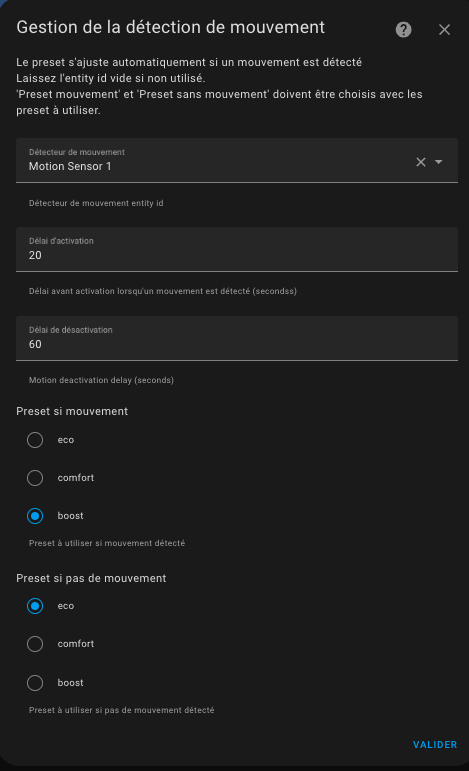
We will now see how to configure the new Activity mode. What we need:
-
a motion sensor. The entity id of a motion sensor. Motion sensor states should be 'on' (motion detected) or 'off' (no motion detected)
-
a motion delay (in seconds) duration defining how long we wait for motion confirmation before considering the motion
-
a end of motion delay (in seconds) duration defining how long we wait for end of motion confirmation before considering the end of motion
-
a target "motion" preset. We will used the temperature of this preset when an activity is detected.
-
a target "no motion" preset. We will used the temperature of this second preset when no activity is detected.
-
we have a room with a thermostat set to activity mode, the "movement" mode chosen is comfort (21.5°C), the "no movement" mode chosen is Eco (18.5°C) and the movement delay is 30 sec during detection and 5 minutes at the end of detection.
-
the room has been empty for a while (no activity detected), the temperature of this room is 18.5°
-
someone enters the room, activity is detected if movement is present for at least 30 seconds. The temperature then rises to 21.5°
-
if the movement is present for less than 30 seconds (rapid passage), the temperature remains at 18.5°,
-
imagine that the temperature has risen to 21.5°, when the person leaves the room, after 5 minutes the temperature is reduced to 18.5°.
-
if the person returns before 5 minutes, the temperature remains at 21.5°
For this to work, the climate thermostat should be in Activity preset mode.
Activitywill only be proposed if it's correctly configure. In other words, the 4 configuration keys have to be set if you want to see Activity in home assistant Interface
Configure the power management
If you choose the Power management feature, click on 'Validate' on the previous page and you will get there:
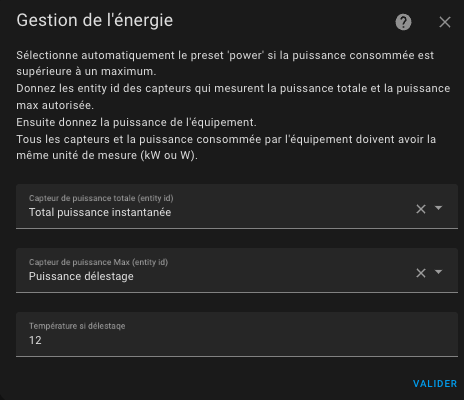
This feature allows you to regulate the power consumption of your radiators. Known as shedding, this feature allows you to limit the electrical power consumption of your heater if overpowering conditions are detected. Give a sensor to the current power consumption of your house, a sensor to the max power that should not be exceeded, the power consumption of your heater (in the first step of the configuration) and the algorithm will not start a radiator if the max power will be exceeded after radiator starts.
Note that all power values should have the same units (kW or W for example). This allows you to change the max power along time using a Scheduler or whatever you like.
power. This is a hidden preset, you cannot select it manually. 2. I use this to avoid exceeded the limit of my electrical power contract when an electrical vehicle is charging. This makes a kind of auto-regulation. 3. Always keep a margin, because max power can be briefly exceeded while waiting for the next cycle calculation typically or by not regulated equipement. 4. If you don't want to use this feature, just leave the entities id empty
Configure the presence or occupancy
If you choose the Presence management feature, this feature allows you to dynamically changes the temperature of all configured Versatile thermostat's presets when nobody is at home or when someone comes back home. For this, you have to configure the temperature that will be used for each preset when presence is off. When the occupancy sensor turns to off, those tempoeratures will be used. When it turns on again the "normal" temperature configured for the preset is used. See preset management.
To configure presence fills this form:
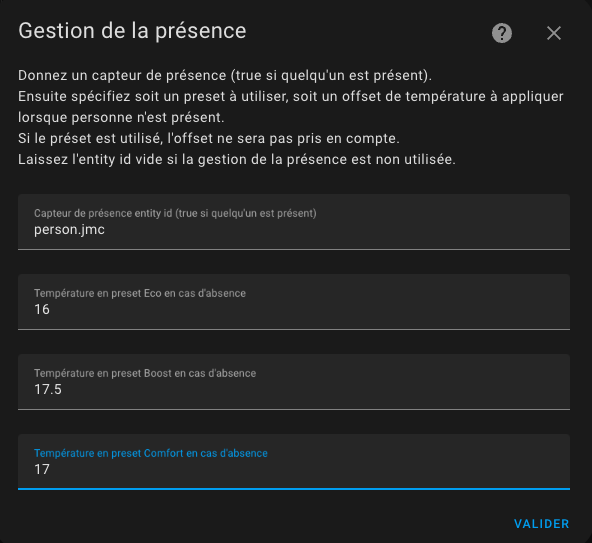
For this you need to configure:
- A occupancy sensor which state should be 'on' or 'home' if someone is present or 'off' or 'not_home' else,
- The temperature used in Eco preset when absent,
- The temperature used in Comfort preset when absent,
- The temperature used in Boost preset when absent
Si le mode AC est utilisé, vous pourrez aussi configurer les températures lorsque l'équipement en mode climatisation.
onorhomestates as present andoffornot_homestate as absent.
Advanced configuration
Those parameters allows to fine tune the thermostat. The advanced configuration form is the following:
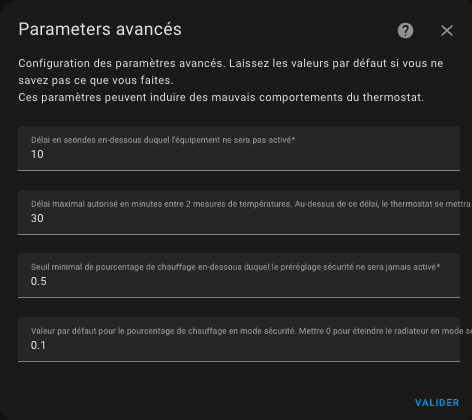
The first delay (minimal_activation_delay_sec) in sec in the minimum delay acceptable for turning on the heater. When calculation gives a power on delay below this value, the heater will stays off.
The second delay (security_delay_min) is the maximal delay between two temperature measure before setting the preset to security and turning off the thermostat. If the temperature sensor is no more giving temperature measures, the thermostat and heater will turns off after this delay and the preset of the thermostat will be set to security. This is useful to avoid overheating is the battery of your temperature sensor is too low.
The third parameter (security_min_on_percent) is the minimum value of on_percent below which the security preset will not be activated. This parameter makes it possible not to put a thermostat in safety, if the controlled radiator does not heat sufficiently.
Setting this parameter to 0.00 will trigger the security preset regardless of the last heating setpoint, conversely 1.00 will never trigger the security preset (which amounts to disabling the function).
The fourth parameter (security_default_on_percent) is the on_percent value that will be used when the thermostat enters security mode. If you put 0 then the thermostat will be cut off when it goes into security mode, putting 0.2% for example allows you to keep a little heating (20% in this case), even in mode security. It avoids finding your home totally frozen during a thermometer failure.
See example tuning for common tuning examples
security_default_on_percentshould be less thansecurity_min_on_percent, 6. When athermostat_over_climatetype thermostat goes intosecuritymode it is turned off. Thesecurity_min_on_percentandsecurity_default_on_percentparameters are then not used.
Parameters synthesis
| Paramètre | Libellé | "over switch" | "over climate" |
|---|---|---|---|
name |
Name | X | X |
thermostat_type |
Thermostat type | X | X |
temperature_sensor_entity_id |
Temperature sensor entity id | X | - |
external_temperature_sensor_entity_id |
External temperature sensor entity id | X | - |
cycle_min |
Cycle duration (minutes) | X | X |
temp_min |
Minimal temperature allowed | X | X |
temp_max |
Maximal temperature allowed | X | X |
device_power |
Device power | X | X |
use_window_feature |
Use window detection | X | X |
use_motion_feature |
Use motion detection | X | X |
use_power_feature |
Use power management | X | X |
use_presence_feature |
Use presence detection | X | X |
heater_entity1_id |
1rst heater switch | X | - |
heater_entity2_id |
2nd heater switch | X | - |
heater_entity3_id |
3rd heater switch | X | - |
heater_entity4_id |
4th heater switch | X | - |
proportional_function |
Algorithm | X | - |
climate_entity1_id |
1rst underlying climate | - | X |
climate_entity2_id |
2nd underlying climate | - | X |
climate_entity3_id |
3rd underlying climate | - | X |
climate_entity4_id |
4th underlying climate | - | X |
ac_mode |
Use the Air Conditioning (AC) mode | X | X |
tpi_coef_int |
Coefficient to use for internal temperature delta | X | - |
tpi_coef_ext |
Coefficient to use for external temperature delta | X | - |
eco_temp |
Temperature in Eco preset | X | X |
comfort_temp |
Temperature in Comfort preset | X | X |
boost_temp |
Temperature in Boost preset | X | X |
eco_ac_temp |
Temperature in Eco preset for AC mode | X | X |
comfort_ac_temp |
Temperature in Comfort preset for AC mode | X | X |
boost_ac_temp |
Temperature in Boost preset for AC mode | X | X |
window_sensor_entity_id |
Window sensor entity id | X | X |
window_delay |
Window sensor delay (seconds) | X | X |
window_auto_open_threshold |
Temperature decrease threshold for automatic window open detection (in °/min) | X | X |
window_auto_close_threshold |
Temperature increase threshold for end of automatic detection (in °/min) | X | X |
window_auto_max_duration |
Maximum duration of automatic window open detection (in min) | X | X |
motion_sensor_entity_id |
Motion sensor entity id | X | X |
motion_delay |
Delay before considering the motion (seconds) | X | X |
motion_off_delay |
Delay before considering the end of motion (seconds) | X | X |
motion_preset |
Preset to use when motion is detected | X | X |
no_motion_preset |
Preset to use when no motion is detected | X | X |
power_sensor_entity_id |
Power sensor entity id | X | X |
max_power_sensor_entity_id |
Max power sensor entity id | X | X |
power_temp |
Temperature for Power shedding | X | X |
presence_sensor_entity_id |
Presence sensor entity id | X | X |
eco_away_temp |
Temperature in Eco preset when no presence | X | X |
comfort_away_temp |
Temperature in Comfort preset when no presence | X | X |
boost_away_temp |
Temperature in Boost preset when no presence | X | X |
eco_ac_away_temp |
Temperature in Eco preset when no presence in AC mode | X | X |
comfort_ac_away_temp |
Temperature in Comfort preset when no presence in AC mode | X | X |
boost_ac_away_temp |
Temperature in Boost preset when no presence in AC mode | X | X |
minimal_activation_delay |
Minimal activation delay | X | - |
security_delay_min |
Security delay (in minutes) | X | X |
security_min_on_percent |
Minimal power percent to enable security mode | X | X |
security_default_on_percent |
Power percent to use in security mode | X | X |
Examples tuning
Electrical heater
- cycle: between 5 and 10 minutes,
- minimal_activation_delay_sec: 30 seconds
Central heating (gaz or fuel heating system)
- cycle: between 30 and 60 min,
- minimal_activation_delay_sec: 300 seconds (because of the response time)
Temperature sensor will battery
- security_delay_min: 60 min (because these sensors are lazy)
- security_min_on_percent: 0.5 (50% - we go to the
securitypreset if the radiator was heating more than 50% of the time) - security_default_on_percent: 0.1 (10% - in preset
security, we keep a heating background 20% of the time)
These settings should be understood as follows:
If the thermometer no longer sends the temperature for 1 hour and the heating percentage (
on_percent) was greater than 50%, then this heating percentage is reduced to 10%.
It's up to you to adapt these settings to your case!
What is important is not to take too many risks with these parameters: suppose you are away for a long period, that the batteries of your thermometer reach the end of their life, your radiator will heat up 10% of the time for the whole the duration of the outage.
Versatile Thermostat allows you to be notified when an event of this type occurs. Set up the alerts that go well as soon as you use this thermostat. See (#notifications)
Reactive temperature sensor (on mains)
- security_delay_min: 15min
- security_min_on_percent: 0.7 (70% - we go to the
securitypreset if the radiator was heating more than 70% of the time) - security_default_on_percent: 0.25 (25% - in preset
security, we keep a heating background 25% of the time)
My preset configuration
This is just an example of how I use the preset. It up to you to adapt to your configuration but it can be useful to understand how it works.
Eco: 17 °C
Comfort: 19 °C
Boost: 20 °C
When presence if off:
Eco: 16.5 °C
Comfort: 17 °C
Boost: 18 °C
Motion detector in my office is set to use Boost when motion is detected and Eco if not.
Algorithm
This integration uses a proportional algorithm. A Proportional algorithm is useful to avoid the oscillation around the target temperature. This algorithm is based on a cycle which alternate heating and stop heating. The proportion of heating vs not heating is determined by the difference between the temperature and the target temperature. Bigger the difference is and bigger is the proportion of heating inside the cycle.
This algorithm make the temperature converge and stop oscillating.
TPI algorithm
The TPI algorithm consist in the calculation at each cycle of a percentage of On state vs Off state for the heater using the target temperature, the current temperature in the room and the current external temperature.
The percentage is calculated with this formula:
on_percent = coef_int * (target temperature - current temperature) + coef_ext * (target temperature - external temperature)
Then make 0 <= on_percent <= 1
Defaults values for coef_int and coef_ext are respectively: 0.6 and 0.01. Those defaults values are suitable for a standard well isolated room.
To tune those coefficients keep in mind that:
- if target temperature is not reach after stable situation, you have to augment the
coef_ext(theon_percentis too low), - if target temperature is exceeded after stable situation, you have to decrease the
coef_ext(theon_percentis too high), - if reaching the target temperature is too slow, you can increase the
coef_intto give more power to the heater, - if reaching the target temperature is too fast and some oscillations appears around the target, you can decrease the
coef_intto give less power to the heater
See some situations at examples.
Sensors
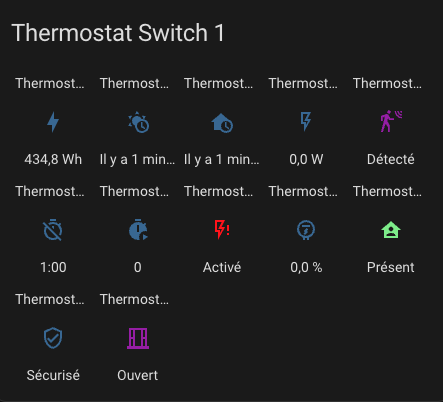
With the thermostat are available sensors that allow you to view the alerts and the internal status of the thermostat. They are available in the entities of the device associated with the thermostat:
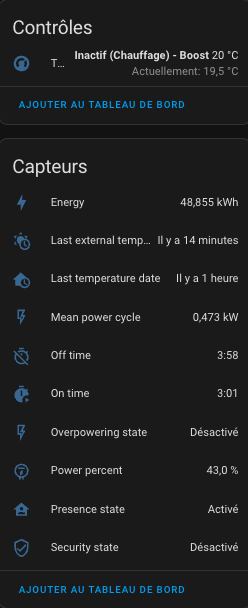
In order, there are:
- the main climate thermostat command entity,
- the energy consumed by the thermostat (value which continuously increases),
- the time of receipt of the last outside temperature,
- the time of receipt of the last indoor temperature,
- the average power of the device over the cycle (for TPIs only),
- the time spent in the off state in the cycle (TPI only),
- the time spent in the on state in the cycle (TPI only),
- load shedding status,
- cycle power percentage (TPI only),
- presence status (if presence management is configured),
- security status,
- opening status (if opening management is configured),
- motion status (if motion management is configured)
To color the sensors, add these lines and customize them as needed, in your configuration.yaml:
frontend:
  themes:
    versatile_thermostat_theme:
      state-binary_sensor-safety-on-color: "#FF0B0B"
      state-binary_sensor-power-on-color: "#FF0B0B"
      state-binary_sensor-window-on-color: "rgb(156, 39, 176)"
      state-binary_sensor-motion-on-color: "rgb(156, 39, 176)"
      state-binary_sensor-presence-on-color: "lightgreen"
and choose the versatile_thermostat_theme theme in the panel configuration. You will get something that will look like this:
Services
This custom implementation offers some specific services to facilitate integration with others Home Assisstant components.
Force the presence / occupancy
This service allows you to force the presence status independantly of the presence sensor. This can be useful if you want to manage the presence through a service and not through a sensor. For example, you could use your alarm to force the absence when it is switched on.
The code to call this service is the following:
service: versatile_thermostat.set_presence
data:
    presence: "off"
target:
    entity_id: climate.my_thermostat
Change the temperature of presets
This services is useful if you want to dynamically change the preset temperature. Instead of changing preset, some use-case need to change the temperature of the preset. So you can keep the Scheduler unchanged to manage the preset and adjust the temperature of the preset. If the changed preset is currently selectionned, the modification of the target temperature is immediate and will be taken into account at the next calculation cycle.
You can change the one or the both temperature (when present or when absent) of each preset.
Use the following code the set the temperature of the preset:
service: versatile_thermostat.set_preset_temperature
data:
    preset: boost
    temperature: 17.8
    temperature_away: 15
target:
    entity_id: climate.my_thermostat
Or to change the preset of the AC mode, add _ac to the preset name like this:
service: versatile_thermostat.set_preset_temperature
data:
    preset: boost_ac
    temperature: 25
    temperature_away: 30
target:
    entity_id: climate.my_thermostat
Change security settings
This service is used to dynamically modify the security parameters described here Advanced configuration.
If the thermostat is in security mode the new settings are applied immediately.
To change the security settings use the following code:
service : thermostat_polyvalent.set_security
date:
    min_on_percent: "0.5"
    default_on_percent: "0.1"
    delay_min: 60
target:
    entity_id : climate.my_thermostat
Notifications
Significant thermostat events are notified via the message bus. The notified events are as follows:
versatile_thermostat_security_event: a thermostat enters or exits thesecuritypresetversatile_thermostat_power_event: a thermostat enters or exits thepowerpresetversatile_thermostat_temperature_event: one or both temperature measurements of a thermostat have not been updated for more thansecurity_delay_minminutesversatile_thermostat_hvac_mode_event: the thermostat is on or off. This event is also broadcast when the thermostat starts upversatile_thermostat_preset_event: a new preset is selected on the thermostat. This event is also broadcast when the thermostat starts up
If you have followed correctly, when a thermostat goes into safety mode, 3 events are triggered:
versatile_thermostat_temperature_eventto indicate that a thermometer has become unresponsive,versatile_thermostat_preset_eventto indicate the switch tosecuritypreset,versatile_thermostat_hvac_mode_eventto indicate the possible extinction of the thermostat
Each event carries the key values of the event (temperatures, current preset, current power, etc.) as well as the states of the thermostat.
You can very easily capture its events in an automation, for example to notify users.
Custom attributes
To tune the algorithm you have access to all context seen and calculted by the thermostat through dedicated attributes. You can see (and use) those attributes in the "Development tools / states" HMI of HA. Enter your thermostat and you will see something like this:
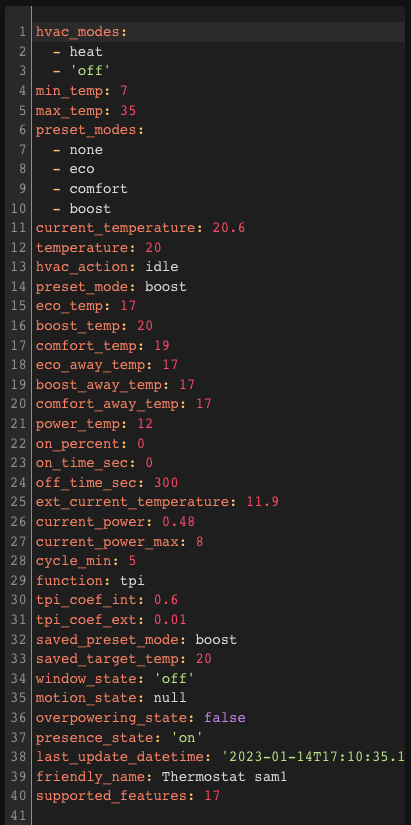
Custom attributes are the following:
| Attribute | Meaning |
|---|---|
hvac_modes |
The list of modes supported by the thermostat |
min_temp |
The minimal temperature |
max_temp |
The maximal temperature |
preset_modes |
The presets visible for this thermostat. Hidden presets are not showed here |
current_temperature |
The current temperature as reported by the sensor |
temperature |
The target temperature |
hvac_action |
The action currently running by the heater. Can be idle, heating |
preset_mode |
The currently selected preset. Can be one of the 'preset_modes' or a hidden preset like power |
[eco/comfort/boost]_temp |
The temperature configured for the preset xxx |
[eco/comfort/boost]_away_temp |
The temperature configured for the preset xxx when presence is off or not_home |
power_temp |
The temperature used when shedding is detected |
on_percent |
(deprecated) The percentage on calculated by the TPI algorithm |
on_time_sec |
(deprecated) The On period in sec. Should be on_percent * cycle_min |
off_time_sec |
(deprecated) The Off period in sec. Should be (1 - on_percent) * cycle_min |
cycle_min |
The calculation cycle in minutes |
function |
The algorithm used for cycle calculation |
tpi_coef_int |
The coef_int of the TPI algorithm |
tpi_coef_ext |
The coef_ext of the TPI algorithm |
saved_preset_mode |
The last preset used before automatic switch of the preset |
saved_target_temp |
The last temperature used before automatic switching |
window_state |
(deprecated) The last known state of the window sensor. None if window is not configured |
motion_state |
(deprecated) The last known state of the motion sensor. None if motion is not configured |
overpowering_state |
(deprecated) The last known state of the overpowering sensor. None if power management is not configured |
presence_state |
(deprecated) The last known state of the presence sensor. None if presence management is not configured |
security_delay_min |
The delay before setting the security mode when temperature sensor are off |
security_min_on_percent |
The minimal on_percent below which security preset won't be trigger |
security_default_on_percent |
The on_percent used when thermostat is in security |
last_temperature_datetime |
(deprecated) The date and time in ISO8866 format of the last internal temperature reception |
last_ext_temperature_datetime |
(deprecated) The date and time in ISO8866 format of the last external temperature reception |
security_state |
(deprecated) The security state. true or false |
minimal_activation_delay_sec |
The minimal activation delay in seconds |
last_update_datetime |
The date and time in ISO8866 format of this state |
friendly_name |
The name of the thermostat |
supported_features |
A combination of all features supported by this thermostat. See official climate integration documentation for more informations |
Some results
Convergence of temperature to target configured by preset:

Cycle of on/off calculated by the integration:

Coef_int too high (oscillations around the target)
Algorithm calculation evolution
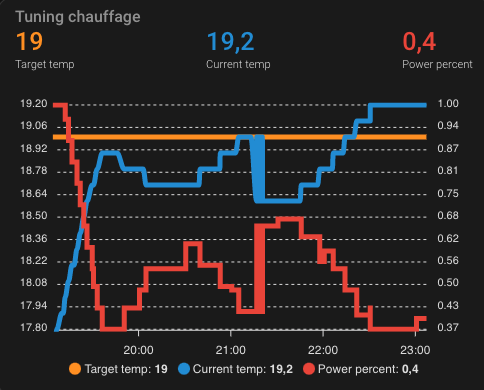 See the code of this component [below]
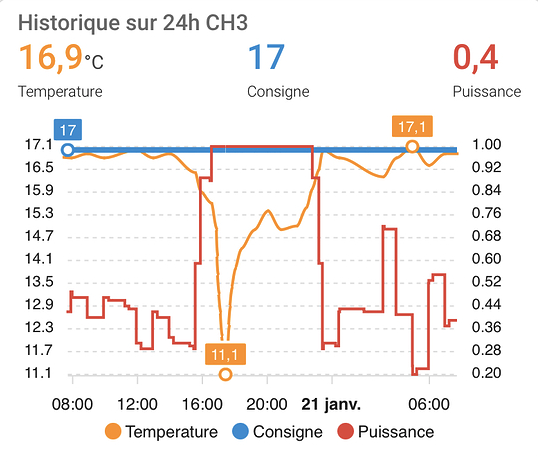
Fine tuned thermostat Thank's impuR_Shozz ! We can see stability around the target temperature (consigne) and when at target the on_percent (puissance) is near 0.3 which seems a very good value.
Enjoy !
Even better
Even Better with Scheduler Component !
In order to enjoy the full power of Versatile Thermostat, I invite you to use it with https://github.com/nielsfaber/scheduler-component Indeed, the scheduler component porpose a management of the climate base on the preset modes. This feature has limited interest with the generic thermostat but it becomes highly powerfull with Awesome thermostat :
Starting here, I assume you have installed Awesome Thermostat and Scheduler Component.
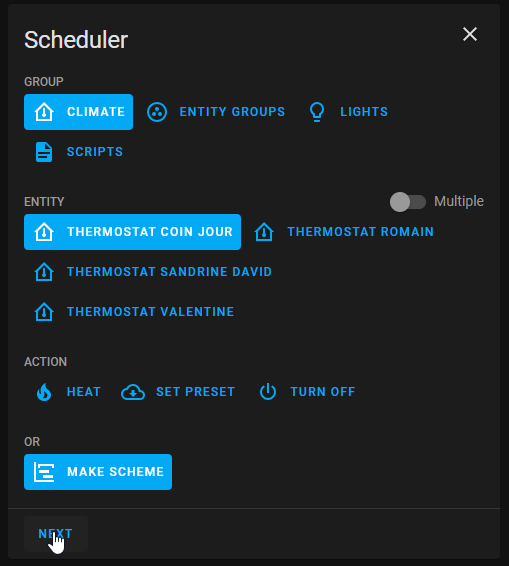
In Scheduler, add a schedule :

Choose "climate" group, choose one (or multiple) entity/ies, select "MAKE SCHEME" and click next : (it is possible to choose "SET PRESET", but I prefer to use "MAKE SCHEME")
Set your mode scheme and save :

In this example I set ECO mode during the night and the day when nobody's at home BOOST in the morning and COMFORT in the evening.
I hope this example helps you, don't hesitate to give me your feedbacks !
Even-even better with custom:simple-thermostat front integration
The custom:simple-thermostat here is a great integration which allow some customisation which fits well with this thermostat.
You can have something like that very easily 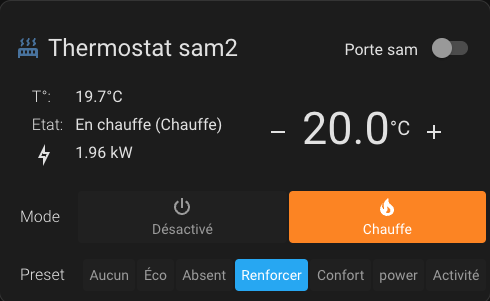 Example configuration:
      type: custom:simple-thermostat
      entity: climate.thermostat_sam2
      layout:
        step: row
      label:
        temperature: T°
        state: Etat
      hide:
        state: false
      control:
        hvac:
          _name: Mode
        preset:
          _name: Preset
      sensors:
        - entity: sensor.total_puissance_radiateur_sam2
          icon: mdi:lightning-bolt-outline
      header:
        toggle:
          entity: input_boolean.etat_ouverture_porte_sam
          name: Porte sam
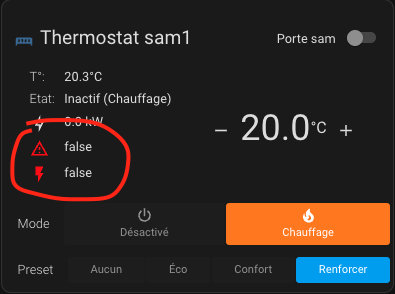
You can customize this component using the HACS card-mod component to adjust the alert colors. Example for displaying safety and load shedding alerts in red:
          card_mod:
            style: |
              {% if is_state('binary_sensor.thermostat_chambre_security_state', 'on') %}
              ha-card .body .sensor-heading ha-icon[icon="mdi:alert-outline"] {
                color: red;
              }
              {% endif %}
              {% if is_state('binary_sensor.thermostat_chambre_overpowering_state', 'on') %}
              ha-card .body .sensor-heading ha-icon[icon="mdi:flash"] {
                color: red;
              }
              {% endif %}
Even better with Apex-chart to tune your Thermostat
You can get curve like presented in some results with kind of Apex-chart configuration only using the custom attributes of the thermostat described here:
type: custom:apexcharts-card
header:
  show: true
  title: Tuning chauffage
  show_states: true
  colorize_states: true
update_interval: 60sec
graph_span: 4h
yaxis:
  - id: left
    show: true
    decimals: 2
  - id: right
    decimals: 2
    show: true
    opposite: true
series:
  - entity: climate.thermostat_mythermostat
    attribute: temperature
    type: line
    name: Target temp
    curve: smooth
    yaxis_id: left
  - entity: climate.thermostat_mythermostat
    attribute: current_temperature
    name: Current temp
    curve: smooth
    yaxis_id: left
  - entity: climate.thermostat_mythermostat
    attribute: on_percent
    name: Power percent
    curve: stepline
    yaxis_id: right
And always better and better with the NOTIFIER daemon app to notify events
This automation uses the excellent App Daemon named NOTIFIER developed by Horizon Domotique that you will find in demonstration here and the code is [here](https ://github.com/jlpouffier/home-assistant-config/blob/master/appdaemon/apps/notifier.py). It allows you to notify the users of the accommodation when one of the events affecting safety occurs on one of the Versatile Thermostats.
This is a great example of using the notifications described here notification.
alias: Surveillance Mode Sécurité chauffage
description: Envoi une notification si un thermostat passe en mode sécurité ou power
trigger:
  - platform: event
    event_type: versatile_thermostat_security_event
    id: versatile_thermostat_security_event
  - platform: event
    event_type: versatile_thermostat_power_event
    id: versatile_thermostat_power_event
  - platform: event
    event_type: versatile_thermostat_temperature_event
    id: versatile_thermostat_temperature_event
condition: []
action:
  - choose:
      - conditions:
          - condition: trigger
            id: versatile_thermostat_security_event
        sequence:
          - event: NOTIFIER
            event_data:
              action: send_to_jmc
              title: >-
                Radiateur {{ trigger.event.data.name }} - {{
                trigger.event.data.type }} Sécurité
              message: >-
                Le radiateur {{ trigger.event.data.name }} est passé en {{
                trigger.event.data.type }} sécurité car le thermomètre ne répond
                plus.\n{{ trigger.event.data }}
              callback:
                - title: Stopper chauffage
                  event: stopper_chauffage
              image_url: /media/local/alerte-securite.jpg
              click_url: /lovelace-chauffage/4
              icon: mdi:radiator-off
              tag: radiateur_security_alerte
              persistent: true
      - conditions:
          - condition: trigger
            id: versatile_thermostat_power_event
        sequence:
          - event: NOTIFIER
            event_data:
              action: send_to_jmc
              title: >-
                Radiateur {{ trigger.event.data.name }} - {{
                trigger.event.data.type }} Délestage
              message: >-
                Le radiateur {{ trigger.event.data.name }} est passé en {{
                trigger.event.data.type }} délestage car la puissance max est
                dépassée.\n{{ trigger.event.data }}
              callback:
                - title: Stopper chauffage
                  event: stopper_chauffage
              image_url: /media/local/alerte-delestage.jpg
              click_url: /lovelace-chauffage/4
              icon: mdi:radiator-off
              tag: radiateur_power_alerte
              persistent: true
      - conditions:
          - condition: trigger
            id: versatile_thermostat_temperature_event
        sequence:
          - event: NOTIFIER
            event_data:
              action: send_to_jmc
              title: >-
                Le thermomètre du radiateur {{ trigger.event.data.name }} ne
                répond plus
              message: >-
                Le thermomètre du radiateur {{ trigger.event.data.name }} ne
                répond plus depuis longtemps.\n{{ trigger.event.data }}
              image_url: /media/local/thermometre-alerte.jpg
              click_url: /lovelace-chauffage/4
              icon: mdi:radiator-disabled
              tag: radiateur_thermometre_alerte
              persistent: true
mode: queued
max: 30
Contributions are welcome!
If you want to contribute to this please read the Contribution guidelines